The platform
Control the connection. We keep it running.
The platform connects your systems and gives you visibility into the data moving between them. SyncSmart hosts and maintains the connection; your integration determines the records and controls available.
From connected systems to working data.
Real screens from ConnectWise + HubSpot. Product pages show which controls apply to each connection.
-
01 · Connect
Start with the records you need.
Authorize both systems and enable the record pairs for your workflow. In this ConnectWise + HubSpot setup, each pair has its own direction and on/off switch.
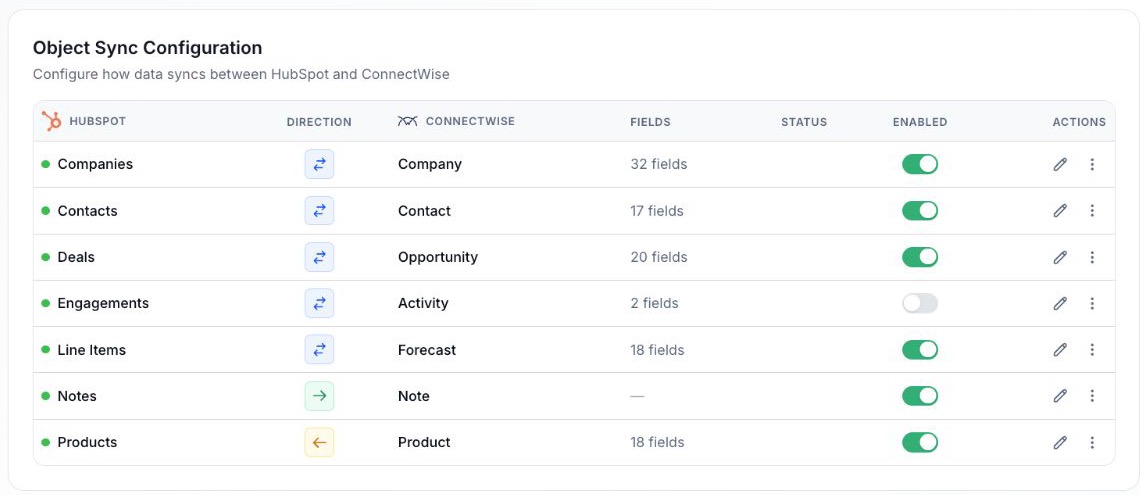
- Each record pair has its own direction: both ways, or one way.
- Mapped field count per pair.
- Turn a pair on or off without touching the others.
Object sync configuration. ConnectWise + HubSpot shown.
-
02 · Map
Give each field a direction.
Both directions where you want them, one direction where you don’t. Locked fields are the ones the integration needs to match records.
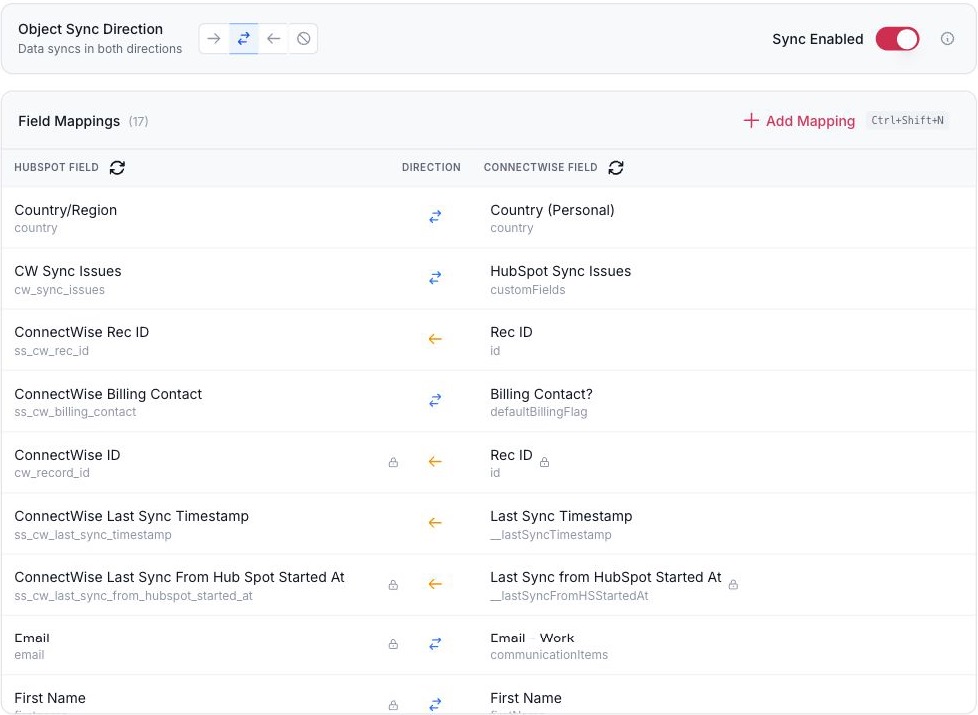
- The direction for the whole object.
- Each field has its own direction.
- Add a mapping for a standard or custom field.
Field mappings for one record pair. ConnectWise + HubSpot shown.
-
03 · Control
Decide which system wins.
Choose the most recent change, HubSpot, or the other system as the system of record, field by field. Filters and HubSpot lists decide which records are in scope.
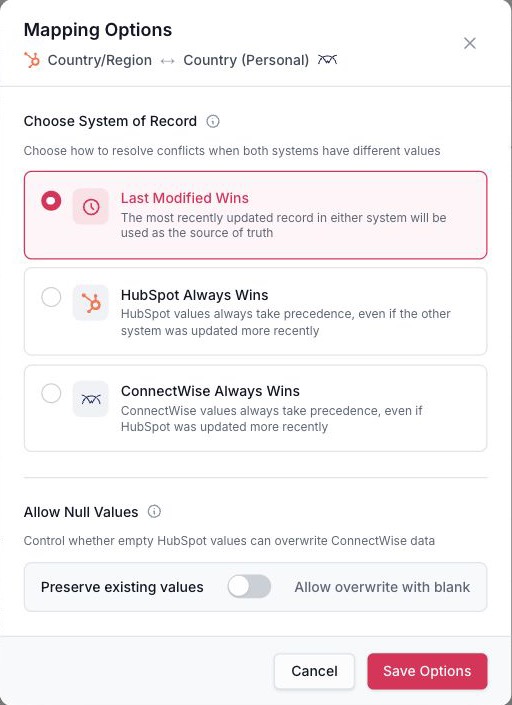
- Which system wins when both change.
- Whether a blank may overwrite a value.
Conflict and blank-value rules for one field. ConnectWise + HubSpot shown.
-
04 · Operate
Follow syncs and configuration changes.
The log shows status, direction and object for each sync. Configuration changes are drafted, published with a history, and can be rolled back to an earlier deployment.

- Search by record.
- Filter by status, direction, and object.
Sync logs. ConnectWise + HubSpot shown.
Hosted and maintained by SyncSmart.
The platform tools below are shown for ConnectWise + HubSpot. Setup and support are agreed for your integration.
Hosted and operated by SyncSmart
Your integration runs on the SyncSmart platform. There is nothing to install or keep patched on your side.
Logs and alerts
Every sync is logged and searchable, with CSV and JSON export. Email alerts on log conditions are available in beta.
Change history and rollback
Mapping changes are saved as drafts and published as versions. Previous deployments can be restored.
Support
A knowledge base at support.syncsmart.io, guided implementation when you want it, and a premium support package backed by a support team.
Setup, support and your data.
Can we set it up ourselves?
Self-serve setup is available for some integrations. Others start with SyncSmart. Each product page explains its setup path, and an implementation specialist can help with strategy, configuration, testing and launch.
What happens when one of the connected systems changes its API?
SyncSmart maintains the integration. Updates to connectors are part of hosting it on the platform, not a project for your team.
How is our data handled?
SyncSmart processes data on your documented instructions as a processor under GDPR. Staff with access are bound by confidentiality, breaches are notified without undue delay, and data is deleted within 30 days after the service ends. The Data Processing Agreement, privacy policy and terms set this out.
Read the Data Processing AgreementWhich controls apply to my integration?
The record types, field directions and available controls depend on the connection. Each product page describes its mappings and controls; we agree the configuration for custom integrations during discovery.
Where do I sign in?
Existing customers sign in at hub.syncsmart.io. Support articles are at support.syncsmart.io.
Sign inSee the platform with your systems in it.
A 30-minute call to walk through your systems, your data and what should happen between them. No prep required.




Thanks. Your request is with the SyncSmart team.
We reply by email to the address you gave. If you would rather talk sooner, pick a time on the calendar.
Book a 30-minute callYour request did not send.
Email [email protected] with what you need to connect, or pick a time on the calendar and we will take it from there.
Or book a 30-minute call
A 30-minute call on the calendar. You pick the slot; the invite arrives by email.