crm + crm
Dynamics 365 + HubSpot integration
Keep Dynamics 365 accounts, contacts, leads and opportunities matched with HubSpot, in both directions.


Route a HubSpot contact to the right Dynamics record.
Define the handoff around the Lead and Contact model your sales process uses.
Resolve the target
Use that routing property, existing record links, and the Lead/Contact settings.
HubSpot Lead objects are a separate mapping.
Core account, contact, lead/contact, and opportunity mappings support configured two-way fields. Actual HubSpot Lead-object sync needs enablement and associations; Marketing List Sync is an add-on.
What syncs between Dynamics 365 and HubSpot
The record pairs and directions for this connection. Read each row for its supported scope.
|
| Direction |
|
|---|---|---|
| Dynamics accountsMap supported account and company fields, ownership, and relationships using the agreed configuration. | Dynamics accounts and HubSpot companies, both directions | HubSpot companies |
| Dynamics contactsSynchronize configured contact fields and account associations with stored record links and email matching. | Dynamics contacts and HubSpot contacts, both directions | HubSpot contacts |
| Dynamics leadsConfigure whether a HubSpot contact updates a Dynamics Lead, Contact, or both using routing settings and existing matches. | Dynamics leads and HubSpot contacts, both directions | HubSpot contacts |
| Dynamics opportunitiesConnect opportunity and deal information with mapped owners, stages, and fields. | Dynamics opportunities and HubSpot deals, both directions | HubSpot deals |
| Dynamics leadsFor enabled Lead-to-Lead mappings. HubSpot Lead creation requires a resolved Contact or Company association and the required lead name. | Dynamics leads and HubSpot Lead objects, both directions | HubSpot Lead objects |
| Dynamics activitiesBring supported activity information and record associations into HubSpot when that flow is configured. | Dynamics activities to HubSpot engagements | HubSpot engagements |
| Dynamics custom entitiesMap supported custom-entity fields and associations into HubSpot custom objects as an agreed extension of the configuration. | Dynamics custom entities to HubSpot custom objects | HubSpot custom objects |
| Dynamics marketing listsOptional Marketing List Sync add-on: bring static or dynamic membership for supported Contact and Lead members into HubSpot. | Dynamics marketing lists to HubSpot lists | HubSpot lists |
What teams do with Dynamics 365 + HubSpot
- 01
Coordinate a qualified-lead handoff
Use your HubSpot process to set the configured routing property, then synchronize the selected Lead or Contact fields into Dynamics.
- 02
Align the opportunity view
Connect Dynamics opportunities and HubSpot deals so teams can work from agreed stage, owner, and sales data.
- 03
Connect the Lead workspace
For an enabled Lead-to-Lead mapping, connect supported lead stages and the associated contact or company across the sales workflow.
- 04
Reuse Dynamics audiences
With Marketing List Sync, make supported Dynamics list membership available to HubSpot campaigns without repeated manual exports.
- 05
Add CRM activity context
Bring configured Dynamics activities and related customer records into HubSpot engagements for informed follow-up.
- Keep account, contact, and opportunity information connected across the two CRMs.
- Choose how HubSpot contacts relate to Dynamics Leads and Contacts.
- Bring supported activity, custom-entity, and optional marketing-list context into HubSpot.
Marketing List Sync add-on
Bring supported Dynamics static and dynamic marketing lists into HubSpot, with configured list and member eligibility conditions.
What you control in Dynamics 365 + HubSpot
Explore the controls listed for this connection. Screens show ConnectWise + HubSpot; your record types and fields follow the mappings described here.
Every field has a direction.
Map standard and custom fields; choose both directions or one for each.
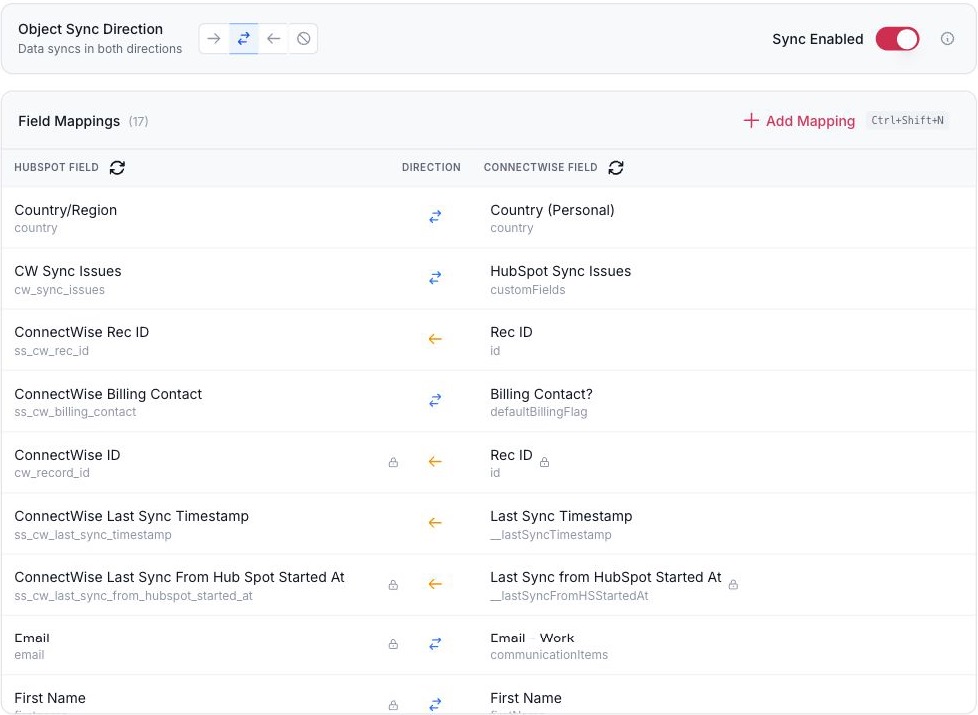
- The direction for the whole object.
- Each field has its own direction.
- Add a mapping for a standard or custom field.
Field mappings for one record pair. ConnectWise + HubSpot shown.
Decide which system wins.
Pick the system of record for a field and whether a blank may overwrite a value.
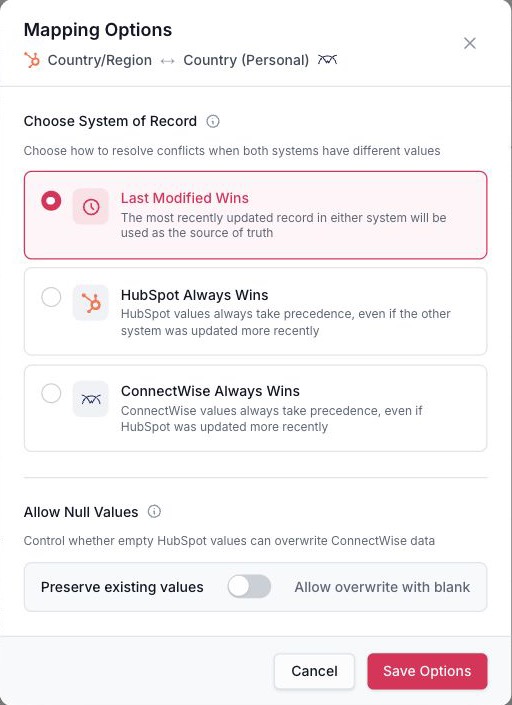
- Which system wins when both change.
- Whether a blank may overwrite a value.
Conflict and blank-value rules for one field. ConnectWise + HubSpot shown.
See every sync.
Search by record and filter by status, direction and object.

- Search by record.
- Filter by status, direction, and object.
Sync logs. ConnectWise + HubSpot shown.
From first call to first sync
Connect, configure and validate the workflow before rollout.
-
Review your Dynamics CRM environment
Work with SyncSmart to review your Dynamics 365 CRM environment, HubSpot portal, and required mappings or add-ons.
-
Authorize and install
Complete the required account authorization and managed Dynamics solution installation with your administrators.
-
Define routing and mappings
Choose entity pairs, field direction, matching, owners, relationships, and Lead/Contact routing. Agree Lead-to-Lead or custom-object enablement.
-
Validate and roll out
Review representative records and any historical sync, then confirm rollout and how your team will monitor the connection.
Before you connect Dynamics 365 and HubSpot
Prerequisites, scope and the details that depend on your setup.
Ask on a callHow do we get started with Dynamics 365 + HubSpot?
We review current availability and fit before agreeing setup. Tell SyncSmart which Dynamics 365 CRM environment you use and what needs to sync. We will review the supported mappings, optional add-ons, and setup with you.
Which Dynamics product does this page cover?
This page covers the Dynamics 365 CRM integration. Review your specific environment with SyncSmart; Finance & Operations and Business Central are separate requirements.
How does Lead versus Contact routing work?
The configured HubSpot routing property, existing record links, and Lead/Contact settings determine whether the record updates a Dynamics Lead, Contact, or both. Your team can build the HubSpot workflow that sets that property.
Can it connect HubSpot Lead objects?
A separate enabled mapping supports Dynamics Lead to HubSpot Lead synchronization. Creation in HubSpot requires a supported Contact or Company association and lead name. Review enablement and stage mapping with SyncSmart.
Is marketing-list synchronization included?
Marketing List Sync is an add-on. It supports configured Dynamics static and dynamic lists with supported Contact or Lead members, eligibility conditions, and an agreed refresh schedule.
Do activities and custom entities sync both ways?
The described activity and custom-entity flows move from Dynamics into HubSpot. Core account, contact, lead, and opportunity mappings have configurable two-way paths.
Can we bring existing data across?
Historical tools support an agreed Dynamics-to-HubSpot sync with filters and paging. Confirm required record types, matching, and validation during implementation.
What should we confirm before setup?
Review your Dynamics CRM environment with SyncSmart. Lead-object mappings need enablement; Marketing List Sync is an optional add-on. Confirm Dynamics 365 CRM scope, administrator access, and HubSpot object requirements.
Which direction does data move?
Core account, contact, lead/contact, and opportunity mappings support both directions; activities move to HubSpot.
Guides, demos and customer stories.
Discuss your Dynamics 365 + HubSpot setup.
Tell us how your team uses Dynamics 365 and HubSpot, which records need to move, and what should happen between them.
Thanks. Your request is with the SyncSmart team.
We reply by email to the address you gave. If you would rather talk sooner, pick a time on the calendar.
Book a 30-minute callYour request did not send.
Email [email protected] with what you need to connect, or pick a time on the calendar and we will take it from there.
Or book a 30-minute call
A 30-minute call on the calendar. You pick the slot; the invite arrives by email.